

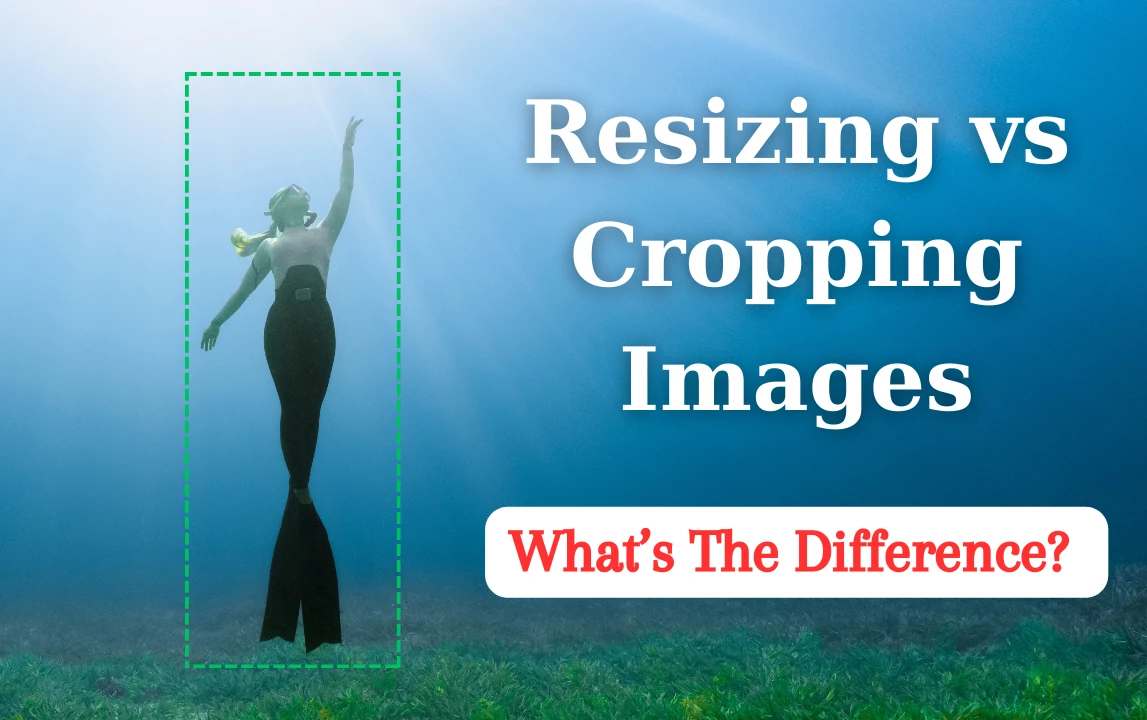

When editing images for a website, blog, online store, or social media account, you may need to resize or crop a picture. These two functions are often available in the same editing tool, but they serve different purposes.
An image resizer changes the dimensions of an image, while an image cropper removes unwanted parts of it.
Understanding the difference helps you select the right tool, avoid distorted images, and create visuals that fit your layout.
What Is an Image Resizer?
An image resizer changes an image’s width and height, usually measured in pixels.
For example, you can resize a 2400 × 1600-pixel photograph to 1200 × 800 pixels. The image keeps the same proportions, but it contains fewer pixels.
Image resizing is useful when you need to:
- Reduce the dimensions of large photographs.
- Prepare images for websites and blogs.
- Create smaller thumbnails.
- Meet upload dimension requirements.
- Make images suitable for email or online forms.
A good image resizer should allow you to specify dimensions and, ideally, preserve the original aspect ratio.
What Is an Image Cropper?
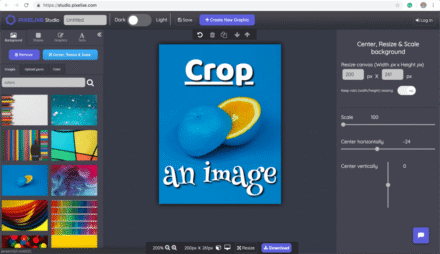
An image cropper removes unwanted areas from an image.
For example, imagine a photograph with a person standing in the center and a large amount of empty space around them. Cropping lets you remove some of that space and focus attention on the person.
Cropping is useful when you need to:
- Remove distracting areas.
- Focus on a particular subject.
- Create square profile pictures.
- Fit images into predefined layouts.
- Improve image composition.
- Prepare thumbnails with consistent proportions.
Cropping usually reduces the visible portion of the original image rather than simply changing the dimensions of the entire picture.
Image Resizer vs. Image Cropper: Main Differences
| Feature | Image Resizer | Image Cropper |
|---|---|---|
| Main purpose | Change image dimensions | Remove unwanted areas |
| Changes composition | Usually no | Yes |
| Can preserve the full scene | Yes | Not always |
| Useful for smaller thumbnails | Yes | Yes |
| Helps fit a specific aspect ratio | Sometimes | Yes |
| May reduce pixel count | Yes | Yes |
| Can affect file size | Yes | Yes |
Both tools can be useful when preparing images for online publishing.
When Should You Use an Image Resizer?
Choose a resizer when you want the entire image to fit a particular size without removing parts of the scene.
For example, a large photograph might be 3000 pixels wide, while your blog layout displays it at 1000 pixels wide.
Resizing the image to appropriate dimensions can reduce unnecessary image data and improve delivery efficiency.
Resizing is also useful when a website or online service requires images within specific dimension limits.
When Should You Use an Image Cropper?
Choose a cropper when the composition needs to change.
For example, a landscape photograph may contain a subject that occupies only a small portion of the frame. Cropping can remove distracting areas and make the subject more prominent.
Cropping is particularly useful for:
- Profile pictures.
- Product photographs.
- Blog thumbnails.
- Portraits.
- Social media posts.
- Website banners.
Remember that cropping removes parts of the image. If you may need the original composition later, keep an unedited copy.
Can You Resize and Crop the Same Image?
Yes. In many cases, using both tools produces the best result.
Imagine you have a photograph measuring 3000 × 2000 pixels and need a wide thumbnail.
You could follow this workflow:
- Open the image in an image editor.
- Crop it to the desired aspect ratio.
- Adjust the crop to keep the main subject visible.
- Resize the cropped image to the required pixel dimensions.
- Export it in a suitable format.
- Compress it if necessary for web publishing.
This workflow helps you achieve the desired composition and dimensions without stretching the image.
Understanding Aspect Ratio
Aspect ratio describes the proportional relationship between an image’s width and height.
Common examples include:
- 1:1: Square images.
- 4:3: Traditional photographs and some content layouts.
- 3:2: Common photographic proportions.
- 16:9: Widescreen images and video thumbnails.
- 2:1: Wide images often used in web layouts.
For example, a 1200 × 600-pixel image has a 2:1 aspect ratio.
When cropping an image to fit a specific layout, choosing the correct aspect ratio helps prevent unwanted empty spaces or automatic cropping by the platform.
How to Avoid Distorting Images
Distortion occurs when an image’s proportions change unintentionally.
For example, changing a 1200 × 800-pixel image to 1200 × 1200 pixels without cropping or preserving its aspect ratio can stretch the original content.
To avoid distortion:
- Lock the aspect ratio when resizing.
- Crop images instead of stretching them into a different shape.
- Preview the result before downloading.
- Keep the original file as a backup.
- Check how the image appears in its final layout.
Which Tool Is Best for Website Images?
The answer depends on the problem you want to solve.
If your image is too large, use a resizer to reduce its dimensions. If the composition contains unwanted areas, use a cropper. If you need both a particular composition and smaller dimensions, use both tools.
For website performance, remember that resizing and cropping are only part of image optimization. File format, compression, responsive image delivery, and loading behavior can also affect performance.
Frequently Asked Questions
Does cropping reduce image quality?
Cropping removes pixels from the image, but it does not necessarily reduce the quality of the remaining pixels. However, the cropped image may have fewer pixels available if it is displayed at a large size.
Is resizing better than cropping?
Neither is universally better. Resizing changes dimensions, while cropping changes the visible composition. Choose according to your goal.
Can I crop an image without changing its dimensions?
Cropping usually changes the pixel dimensions because some areas are removed. An editor may subsequently resize the cropped image to a specified output size.
Which tool should I use for a profile picture?
A cropper is often useful for framing the subject in a square or circular display. A resizer can then adjust the image to the required dimensions.
An image resizer and an image cropper solve different image editing problems. Resizing changes dimensions, while cropping removes unwanted areas and changes composition.
By understanding when to use each tool, you can prepare images more effectively for blogs, websites, social media, and other digital projects.
Explore CompressImageFree.store for more tutorials on image resizing, cropping, compression, and web image optimization.



Leave a Comment