

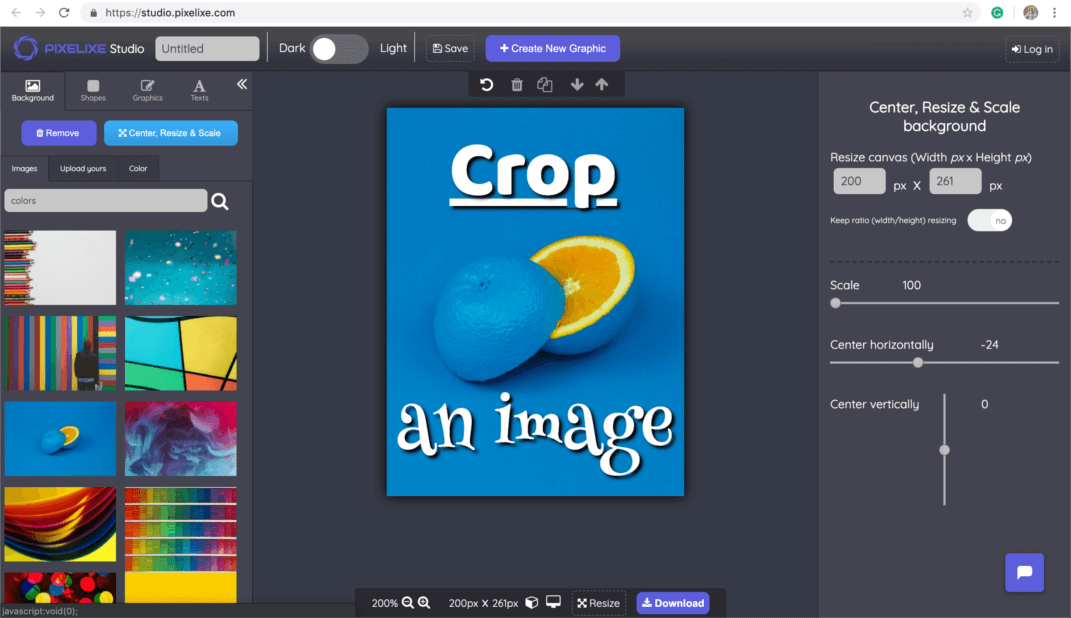

Cropping is one of the easiest ways to improve the appearance of a photograph or graphic. By removing unwanted areas and focusing on the main subject, you can create cleaner images for websites, blogs, social media, and online stores.
Whether you want to create a square profile picture, prepare a blog thumbnail, or fit a photograph into a website banner, an online image cropper can help you achieve the right composition.
In this guide, you will learn how to crop images online, choose suitable aspect ratios, and avoid common mistakes.
What Is Online Image Cropping?
Online image cropping is the process of removing unwanted parts of a digital image using a browser-based editing tool.
Most image croppers let you select a rectangular area of the image and adjust its boundaries. Some tools also offer predefined aspect ratios, freeform selection, rotation, and output resizing.
Once you are satisfied with the crop, you can export the result and use it in your project.
Why Is Image Cropping Important?
Improve Image Composition
Cropping helps focus attention on the main subject by removing distracting elements around it.
Create Consistent Website Layouts
Using consistent image proportions can make blog cards, product listings, and article pages look more organized.
Prepare Social Media Graphics
Different social media placements may require different aspect ratios. Cropping helps adapt an image to the intended format.
Improve Product Photography
Online stores often use cropped images to highlight product details and maintain consistent presentation across product listings.
Remove Unwanted Areas
Cropping can remove empty space, irrelevant backgrounds, or distracting objects near the edges of a picture.
How to Crop an Image Online
Follow these steps to crop your image.
Step 1: Choose an Image Cropper
Select an online image editing tool that supports your image format and provides the cropping options you need.
For example, you can explore:
- Photopea: https://www.photopea.com/
- Canva: https://www.canva.com/
- Pixlr: https://pixlr.com/
Features and free usage limits vary by service.
Step 2: Upload Your Image
Open the selected tool and import your image. Keep a copy of the original file before making changes.
Step 3: Select the Crop Area
Choose the crop tool and adjust the crop boundaries.
Position the crop around the subject you want to highlight. Check the edges to make sure you are not accidentally cutting off important details.
Step 4: Choose an Aspect Ratio
If your image must fit a particular layout, select the appropriate aspect ratio.
For example, a square crop may be suitable for a profile picture, while a wide crop may work better for a blog thumbnail.
Step 5: Preview the Result
Review the composition before confirming the crop. Make sure the main subject is visible and the image looks balanced.
Step 6: Export the Cropped Image
Save the final image in a suitable format, such as JPG, PNG, or WebP.
If the image will be published on a website, consider resizing and compressing it after cropping.
Common Aspect Ratios for Websites and Social Media
The following dimensions are useful examples, but exact platform requirements may change.
| Use Case | Example Dimensions | Aspect Ratio |
|---|---|---|
| Square profile graphic | 1080 × 1080 px | 1:1 |
| Wide blog thumbnail | 1200 × 630 px | Approximately 1.91:1 |
| Landscape image | 1200 × 800 px | 3:2 |
| Widescreen graphic | 1920 × 1080 px | 16:9 |
| Portrait graphic | 1080 × 1350 px | 4:5 |
Always check the requirements of the specific platform or website theme where the image will appear.
Image Cropping Tips for Better Results
Keep the Main Subject Visible
Position the crop so that the most important person, object, or feature remains clearly visible.
Leave Enough Space Around the Subject
A crop that is too tight can make an image feel cramped. Leave enough room to maintain a balanced composition.
Avoid Cutting Off Important Details
When cropping portraits, pay attention to faces and body proportions. For product images, keep important product features within the frame.
Think About Mobile Displays
An image that looks good on a desktop may be cropped differently on a mobile device. Preview the final layout at different screen sizes.
Maintain Consistency
For a blog or online store, using consistent aspect ratios across similar images can create a more professional appearance.
Keep the Original Image
Save a copy of the uncropped image. You may need a different composition for another platform later.
Cropping vs. Resizing vs. Compression
These three operations serve different purposes.
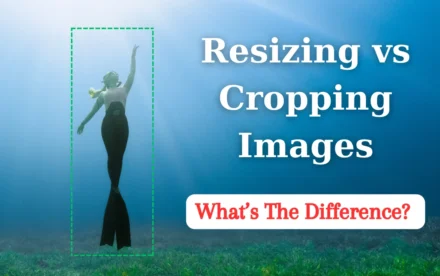
Cropping removes unwanted areas from an image.
Resizing changes the pixel dimensions of an image.
Compression reduces the amount of data required to store the image.
For example, you might crop a photograph to focus on a product, resize it to 1000 pixels wide, and then compress it to reduce its download size.
Using the three operations together can help prepare an image for website publishing.
Common Cropping Mistakes
- Selecting an aspect ratio that does not match the final layout.
- Cropping too tightly around the subject.
- Cutting off important objects or text.
- Stretching the image after cropping.
- Ignoring how the image will appear on mobile screens.
- Overwriting the original image.
- Forgetting to optimize the final file for the web.
Avoiding these mistakes helps maintain a clean composition and a better viewing experience.
Frequently Asked Questions
Can I crop images online for free?
Yes. Many online image editors offer free cropping features, although some advanced features may require an account or paid subscription.
Does cropping change image dimensions?
Usually, yes. Cropping removes pixels outside the selected area, resulting in a smaller image unless you resize it afterward.
Can I crop an image into a circle?
Some editors support circular crops or masks. If you need a transparent circular image, confirm that the tool can export transparency, typically using a suitable PNG or WebP workflow.
Is cropping useful for SEO?
Cropping does not directly guarantee better rankings. However, well-framed, appropriately sized images can improve page presentation and help create a better user experience.
Cropping images online is a practical way to improve composition and prepare visuals for websites, blogs, and social media. By selecting the right crop area, using appropriate aspect ratios, and checking the final result, you can create images that fit your layout and communicate your message more clearly.
For the best results, combine cropping with appropriate resizing and compression when necessary.
Visit CompressImageFree.store for more useful resources about image resizing, cropping, editing, and optimization.


Leave a Comment