

You don’t always need expensive software to get started. Plenty of free online image editors let you work on images directly in your browser without installing traditional desktop applications.
In this guide, we’ll explore some popular free online image editing tools, explain their main features, and help you choose the right option for your needs.
What Are Online Image Editing Tools?
Online image editing tools are web-based applications that let you modify digital images, often without installing software on your computer.
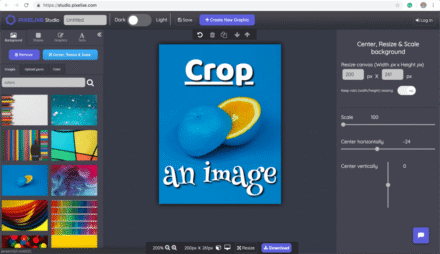
Depending on the tool, you may be able to crop or resize pictures, adjust brightness, change colors, add text, apply filters, remove backgrounds, or compress image files.
Many browser-based editors are designed with beginners in mind. Their interfaces make everyday editing tasks easier to learn, even if you have little or no previous experience.
1. Photopea
Photopea is a browser-based image editor designed for both basic adjustments and more advanced editing tasks. Its interface and features may feel familiar if you’ve used professional image editing applications.
Key Features of Photopea
- Works with layers and masks.
- Supports PSD and other compatible file formats.
- Provides selection tools and adjustment layers.
- Lets you add text, shapes, and effects.
- Allows you to export images in supported formats.
Photopea is a good choice if you want more control over your images without installing a traditional desktop editor. Beginners can start with simple tasks and gradually explore its advanced tools.
Website: https://www.photopea.com/
2. Canva
Canva is a popular online design platform that combines image editing with graphic design tools. It is particularly useful for bloggers, content creators, students, and small businesses that need attractive visuals.
Key Features of Canva
- Ready-made design templates.
- Text, shapes, illustrations, and graphic elements.
- Image cropping and resizing.
- Social media graphics, banners, and thumbnails.
- Presentation and promotional design tools.
Canva is especially suitable for creating visual content without needing advanced design skills. You can start with a template, customize its text and images, and export the finished design.
Some tools and design assets require a paid plan, so check which features are available before starting your project.
Website: https://www.canva.com/
3. Pixlr
Pixlr offers browser-based tools for photo adjustments and creative design. Depending on the editor and plan, you may find features for cropping, applying filters, adjusting colors, and performing other common editing tasks.
Key Features of Pixlr
- Basic photo editing and adjustments.
- Filters and creative effects.
- Image cropping and resizing.
- Color and brightness adjustments.
- Tools for creating and editing visual content.
Pixlr is a useful option if you want to make quick photo edits without dealing with complicated software. It can suit beginners who need straightforward editing tools for everyday projects.
Available features and usage limits may vary depending on the editor and subscription plan.
Website: https://pixlr.com/
4. Adobe Express
Adobe Express offers online design and image editing tools for creating digital content. It can help you produce social media graphics, promotional images, banners, and other visual materials.
Key Features of Adobe Express
- Image resizing and cropping.
- Ready-made templates and design elements.
- Text and typography tools.
- Photo editing and background-related features.
- Export options for digital projects.
Adobe Express is worth exploring if you want to create polished marketing materials or branded graphics using a beginner-friendly interface.
Some features require an account or a paid plan, so review the available options before choosing it for regular use.
Website: https://www.adobe.com/express/
Important Features to Look for in an Image Editor
Before choosing an online image editor, consider what you need it to do. The best tool is one that matches your project, experience level, and preferred workflow.
Cropping and Resizing
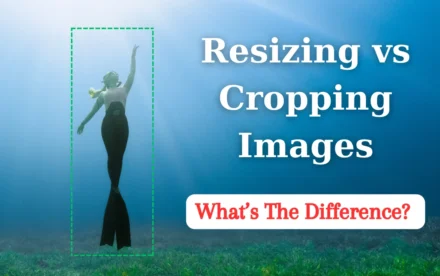
Cropping removes unwanted parts of an image, while resizing changes its dimensions. Both features are useful when preparing images for blog posts, websites, social media platforms, and presentations.
Brightness and Color Adjustment
Controls for brightness, contrast, saturation, and color balance can help improve photographs and make images look more appealing.
Text and Graphic Elements
Text, shapes, icons, and decorative elements are useful for creating thumbnails, banners, posters, advertisements, and promotional graphics.
Background Editing
Some editors let you remove or replace image backgrounds. These features can help you prepare product photos, profile pictures, and marketing materials. Background removal may be limited to paid plans in some tools.
File Format Support
A useful image editor should support the formats you work with, such as JPG, PNG, and WebP. If you need a transparent background, check that the export format preserves transparency.
Export Quality
Check whether the editor lets you choose output dimensions, file formats, and image quality settings. These options affect both the appearance of your image and its final file size.
How to Edit an Image Online
If you’re new to image editing, follow these simple steps to get started:
- Choose an online image editor that suits your needs.
- Upload an image or open a supported file.
- Crop or resize the image as needed.
- Adjust brightness, contrast, and colors.
- Add text or other design elements if necessary.
- Preview the finished image and check its quality.
- Export the image in a suitable file format.
- Compress the final image if you need a smaller file for your website.
Always keep an original copy of important images before editing. This makes it easier to return to the original or create a different version later.
How to Choose the Right Online Image Editing Tool
Different image editors are suitable for different types of projects. Here is a quick guide to help you decide where to start.
- For advanced layer-based editing: Try Photopea.
- For templates and visual content: Try Canva.
- For quick photo adjustments: Explore Pixlr.
- For branded graphics and marketing materials: Explore Adobe Express.
Features, pricing, account requirements, and export limits can change over time. Check each platform’s current offering before making it part of your regular workflow.
Conclusion
Free online image editors make it easier to improve photographs and create digital graphics without installing complicated software. Whether you’re cropping a picture, adjusting colors, adding text, or designing a banner, there are options for different experience levels and creative needs.
Choose an editor that fits your project, learn its main features, and save your work in a suitable format. With a little practice, you can create attractive images for your website, blog, or social media accounts.
For more information about image editing, compression, resizing, and optimization, visit CompressImageFree.store.


Leave a Comment